HP 3301 help
HP 3301fdw and 3301sdw help, step by step.
Tasks from HP’s user guide for the Color LaserJet Pro MFP 3301 series, one page each, in plain steps.
Connect an HP 3301 to Wi-Fi from the touchscreen. →Set up an HP 3301 on Wi-Fi with the HP app. →See whether an HP 3301 is on Wi-Fi. →Connect an HP 3301 to the router with a cable. →Connect an HP 3301 to a computer with USB. →HP 3301 asks for a password? Use the PIN inside the front door. →Load paper in the HP 3301’s main tray. →Feed one sheet or one envelope through Tray 1. →Letterhead and pre-punched paper on the HP 3301: which side up. →Print envelopes on an HP 3301. →Print label sheets on an HP 3301. →Where to put originals for copying, scanning and faxing. →Change which paper size a tray is set to. →Open the HP 3301’s built-in web page (EWS). →View or change the HP 3301’s network settings. →Lock the HP 3301’s settings with your own password. →Turn HP 3301 firmware updates on or off. →Print from Windows to an HP 3301. →Add an HP 3301 to a Mac and print. →Print from a phone or tablet to an HP 3301. →Print to an HP 3301 without a Wi-Fi network. →Print straight from a USB stick, no computer needed. →Copy a document on an HP 3301. →Copy an ID card, front and back, onto one sheet. →Scan with your phone’s camera in the HP app. →Set up Scan to Email on an HP 3301. →Save scans straight to a shared folder. →Scan to a USB stick without a computer. →Scan straight to a SharePoint site. →Scan from the HP 3301’s screen to your computer. →Scan from a web browser without installing anything. →Send a fax from the HP app without a phone line. →Send a fax from the HP 3301fdw. →HP 3301 not connecting to Wi-Fi? Work through this list. →Wi-Fi set up, but the HP 3301 still will not print. →Moved the router or the printer and it stopped printing? →Your Wi-Fi network is missing from the HP 3301’s list. →Fix a Wi-Fi Direct connection to the HP 3301. →Fix a wired network connection on the HP 3301. →The computer cannot reach the HP 3301 on the network. →Print the HP 3301’s status and network reports. →Reset the HP 3301’s network settings and set up Wi-Fi again. →Reset the HP 3301 to factory settings. →See how much toner is left in the HP 3301. →Replace a toner cartridge in the HP 3301. →The HP 3301 says a cartridge is low or very low. →The HP 3301 says a cartridge is unauthorized or protected. →The HP 3301 will not take paper from the tray. →Pages come out crooked on the HP 3301. →The HP 3301 feeds more than one sheet at a time. →The whole page prints light or faded. →Pages print darker than expected or with a gray background. →The HP 3301 prints completely blank pages. →The HP 3301 prints all-black pages. →Lines, streaks or bands on HP 3301 prints. →Toner rubs off, or a faint shadow of the image repeats. →Printed pages come out curled. →Print a cleaning page to clear specks, smears and lines. →Calibrate the HP 3301 for misaligned colors or color shadows. →Print a color document in black and gray to save color toner. →Find which toner cartridge causes spots or streaks. →Make HP 3301 prints lighter or darker. →Clean the document feeder when it jams or grabs several pages. →Missing text, odd lines or wrong fonts? Try another HP driver. →Clear a jam in the HP 3301’s single-sheet slot. →Clear a jam in the HP 3301’s main paper tray. →Clear a paper jam in the HP 3301’s document feeder. →Clear a jam behind the HP 3301’s rear access door. →Clear a jam where pages come out of the HP 3301. →Fax a document straight from your PC through the HP 3301fdw. →Talk to the recipient first, then send the fax. →Send a fax later in the day from the HP 3301fdw. →Scan a fax into memory and let the printer send it when the line is free. →Fax the same document to several recipients. →Receive a fax by hand while you are on the phone. →Reprint a fax you already received. →Block fax numbers you do not want to receive from. →Save fax numbers and groups on the HP 3301fdw. →Put your name and fax number at the top of every fax you send. →Choose whether and when the HP 3301fdw answers incoming faxes. →Use a separate fax number on a shared phone line. →Slow the fax speed down when faxes fail. →Turn fax Error Correction Mode on or off. →Forward incoming faxes to another fax machine. →Save incoming faxes as PDF or TIFF instead of printing them. →Fax on a digital phone line with the HP 3301fdw. →Test the HP 3301fdw’s fax setup. →Fix a failed fax test on the HP 3301fdw. →The HP 3301fdw sends faxes but does not receive them. →The HP 3301fdw receives faxes but does not send them. →The HP 3301fdw keeps showing Phone Off Hook. →Print the HP 3301fdw’s fax activity log and reports. →
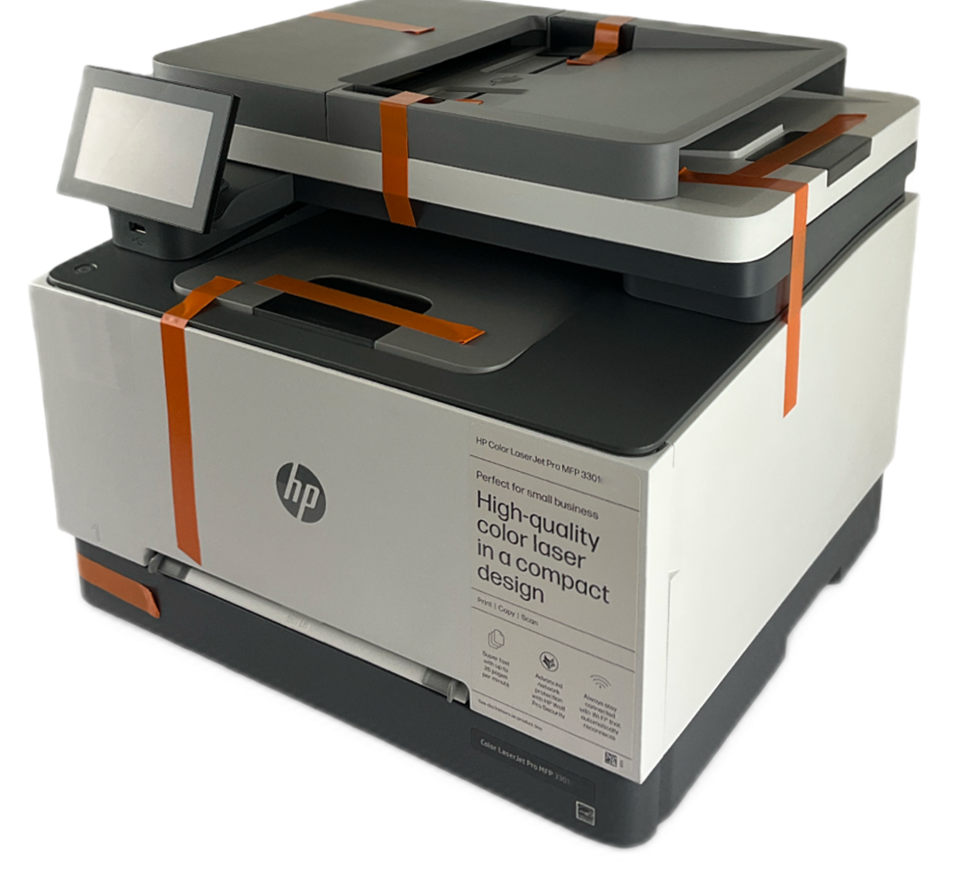 Refurbished, Grade AHP Color LaserJet Pro MFP 3301fdw$299.99HP list price $639.00. You save $339.Free FedEx Ground, 1-5 business daysSee the 3301fdw
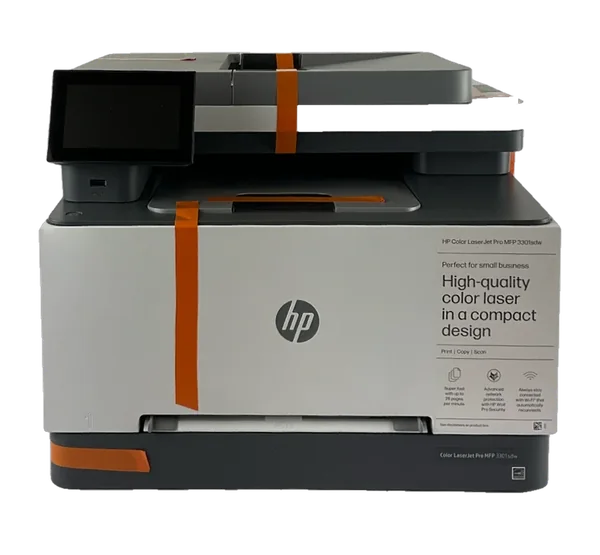 Refurbished, Grade AHP Color LaserJet Pro MFP 3301sdw$299.99HP list price $539.00. You save $239.Free FedEx Ground, 1-5 business daysSee the 3301sdw
More buying guides
Refurbished HP printers we sell →Refurbished vs new printer →HP 3301fdw vs 3301sdw →HP 3301fdw toner cost per page →HP OfficeJet Pro 9730 ink cost →HP Color LaserJet Pro MFP 3301fdw review →HP OfficeJet Pro 9730 review →HP Color LaserJet Pro MFP 3301sdw review →HP 3301fdw and 3301sdw setup →HP OfficeJet Pro 9730 setup →11×17 printer: HP OfficeJet Pro 9730 →All-in-one printer with fax →Laser printer under $300 →HP 218X toner: price and page yield →HP 936XL ink: price and page yield →Fix “Cartridge problem” on the HP 3301 →Which printer for a small office →HP OfficeJet Pro 9730 help: Wi-Fi, 11x17, ink, paper jams →HP 3301fdw vs Brother MFC-L3780CDW →HP 3301fdw vs Canon MF656Cdw →HP 9730 vs Epson WF-7840 →HP 9730 vs Brother MFC-J6555DW →