HP 3301 help
Clear a paper jam in the HP 3301’s document feeder.
Check three places: under the feeder cover, in the feeder’s output area and behind the white backing of the scanner lid.
Steps
- Turn the printer off.
- Open the document feeder cover, remove the jammed paper and close the cover.
- Lift the feeder input tray and remove any paper from the output area underneath, then lower it.
- Open the scanner lid. If paper is caught behind the white plastic backing, pull it out gently, then close the lid.
Good to know
- Remove staples and paper clips from originals.
- Set the feeder guides snugly against the pages.
- Heavy or glossy originals jam more often. Use the glass for those.
- Jams keep coming back? Clean the feeder rollers.
Based on HP’s user guide for the Color LaserJet Pro MFP 3301 series (page 93). Menus can differ slightly between firmware versions. Hardware or warranty questions: support.hp.com.
Need the printer?
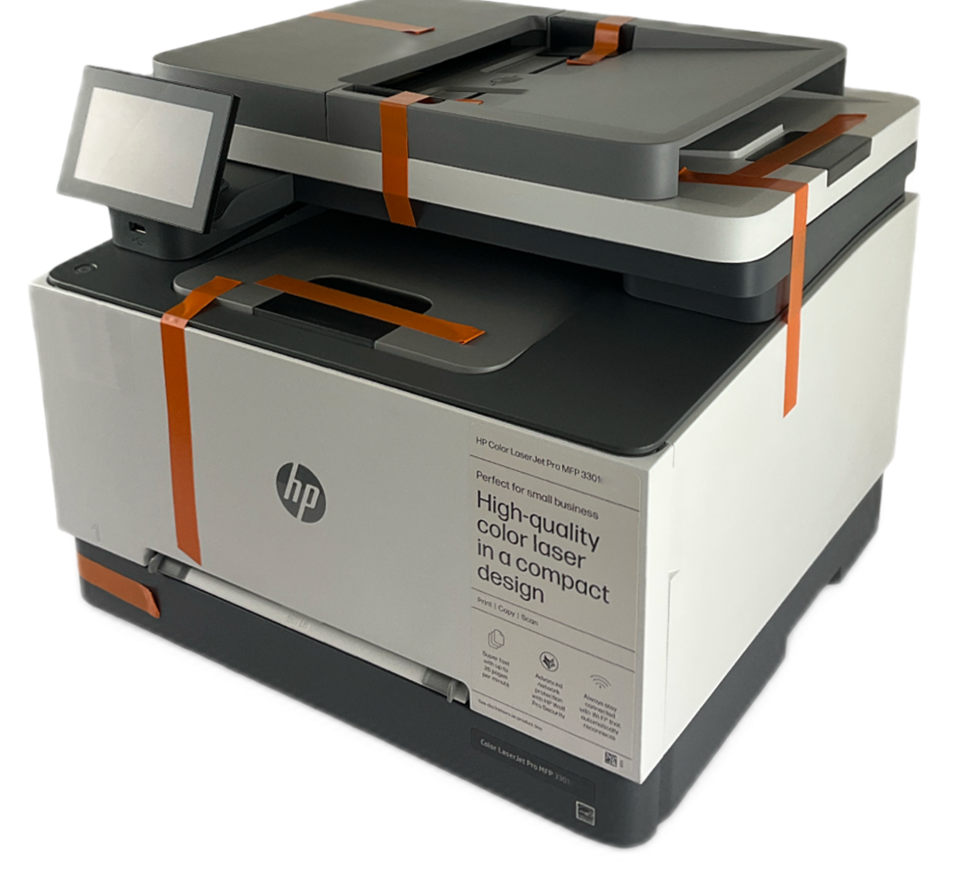 Refurbished, Grade AHP Color LaserJet Pro MFP 3301fdw$299.99HP list price $639.00. You save $339.Free FedEx Ground, 1-5 business daysSee the 3301fdw
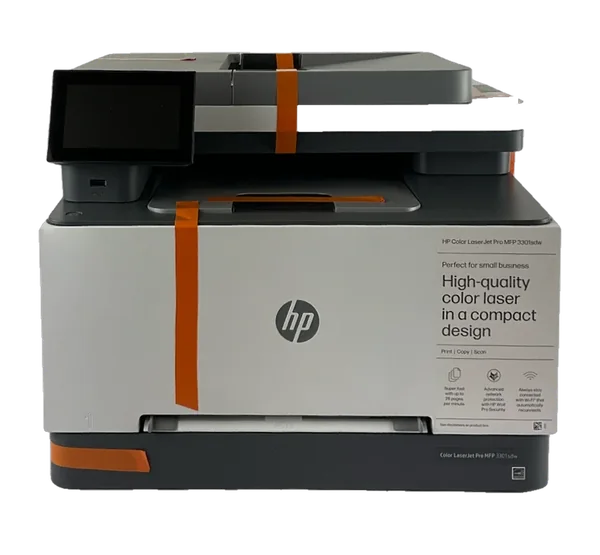 Refurbished, Grade AHP Color LaserJet Pro MFP 3301sdw$299.99HP list price $539.00. You save $239.Free FedEx Ground, 1-5 business daysSee the 3301sdw
More HP 3301 help
Missing text, odd lines or wrong fonts? Try another HP driver. →Clear a jam in the HP 3301’s single-sheet slot. →Clear a jam in the HP 3301’s main paper tray. →Clear a jam behind the HP 3301’s rear access door. →Clear a jam where pages come out of the HP 3301. →Fax a document straight from your PC through the HP 3301fdw. →All HP 3301 help pages →