HP 3301 help
Clear a jam in the HP 3301’s main paper tray.
Jams in Tray 2 are cleared with the tray out of the printer. A deep jam is reached through the single-sheet slot.
Steps
- Turn the printer off.
- Pull Tray 2 all the way out and remove any jammed or torn sheets.
- If the sheet is deep inside or you cannot see it, press down on the single-sheet slot, pull the slot tray out and remove the paper from there.
- Push the slot tray back in if you removed it, then put Tray 2 back.
Good to know
- Pull paper out with both hands and never use tweezers or pliers.
- Take out every torn scrap, or the jam comes back.
- The screen may show an animation for the jam you have.
Based on HP’s user guide for the Color LaserJet Pro MFP 3301 series (page 91). Menus can differ slightly between firmware versions. Hardware or warranty questions: support.hp.com.
Need the printer?
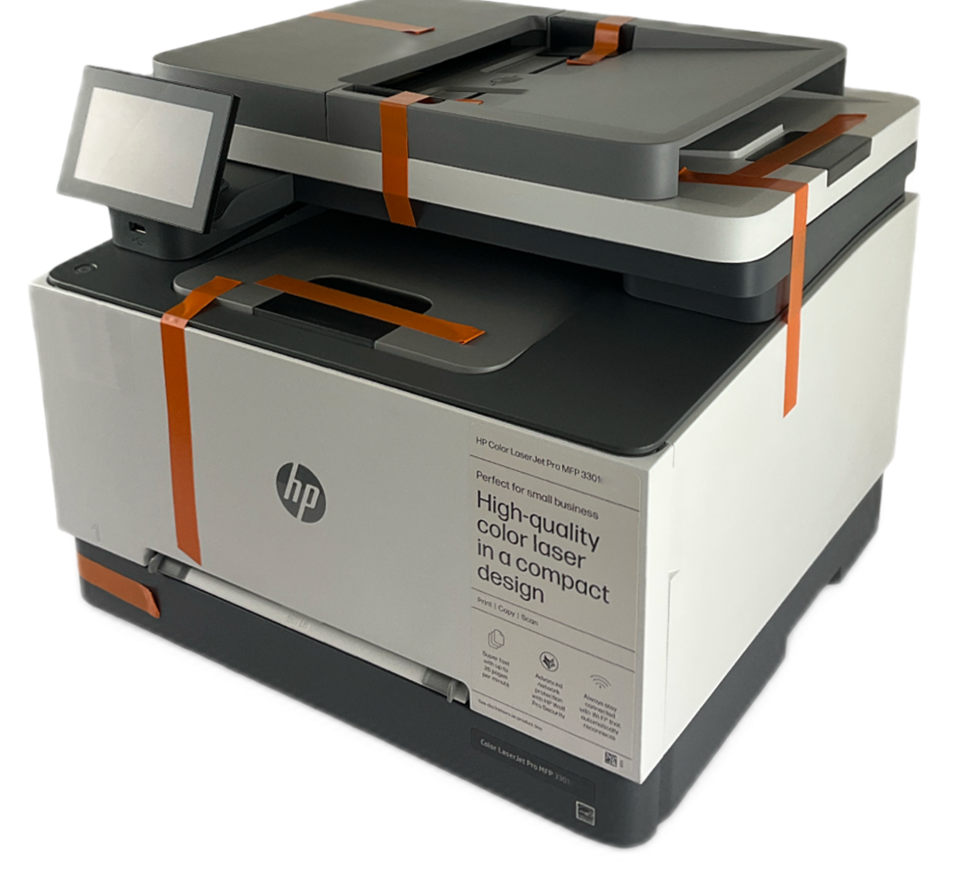 Refurbished, Grade AHP Color LaserJet Pro MFP 3301fdw$299.99HP list price $639.00. You save $339.Free FedEx Ground, 1-5 business daysSee the 3301fdw
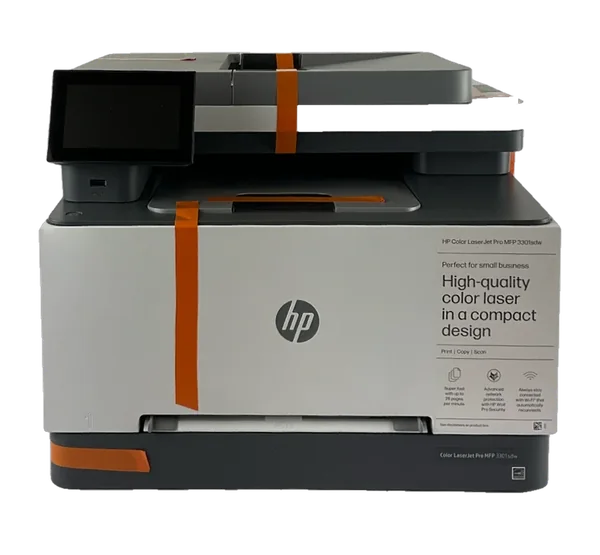 Refurbished, Grade AHP Color LaserJet Pro MFP 3301sdw$299.99HP list price $539.00. You save $239.Free FedEx Ground, 1-5 business daysSee the 3301sdw
More HP 3301 help
Clean the document feeder when it jams or grabs several pages. →Missing text, odd lines or wrong fonts? Try another HP driver. →Clear a jam in the HP 3301’s single-sheet slot. →Clear a paper jam in the HP 3301’s document feeder. →Clear a jam behind the HP 3301’s rear access door. →Clear a jam where pages come out of the HP 3301. →All HP 3301 help pages →