HP 3301 help
The computer cannot reach the HP 3301 on the network.
If the printer’s IP address changed, Windows may still be printing to the old one.
Steps
- Print the configuration report to see the printer’s current IP address.
- On Windows open the printer’s Properties → Ports tab and check that address is selected.
- With an HP standard TCP/IP port, tick Always print to this printer, even if its IP address changes.
- With a Microsoft standard TCP/IP port, use the printer’s hostname instead of its IP address.
- If the address is right and it still fails, remove the printer and add it again.
Good to know
- Test the network: in Command Prompt (Windows) or Terminal (Mac) type
pingand the printer’s IP address. Reply times mean the network works.
Based on HP’s user guide for the Color LaserJet Pro MFP 3301 series (page 124). Menus can differ slightly between firmware versions. Hardware or warranty questions: support.hp.com.
Need the printer?
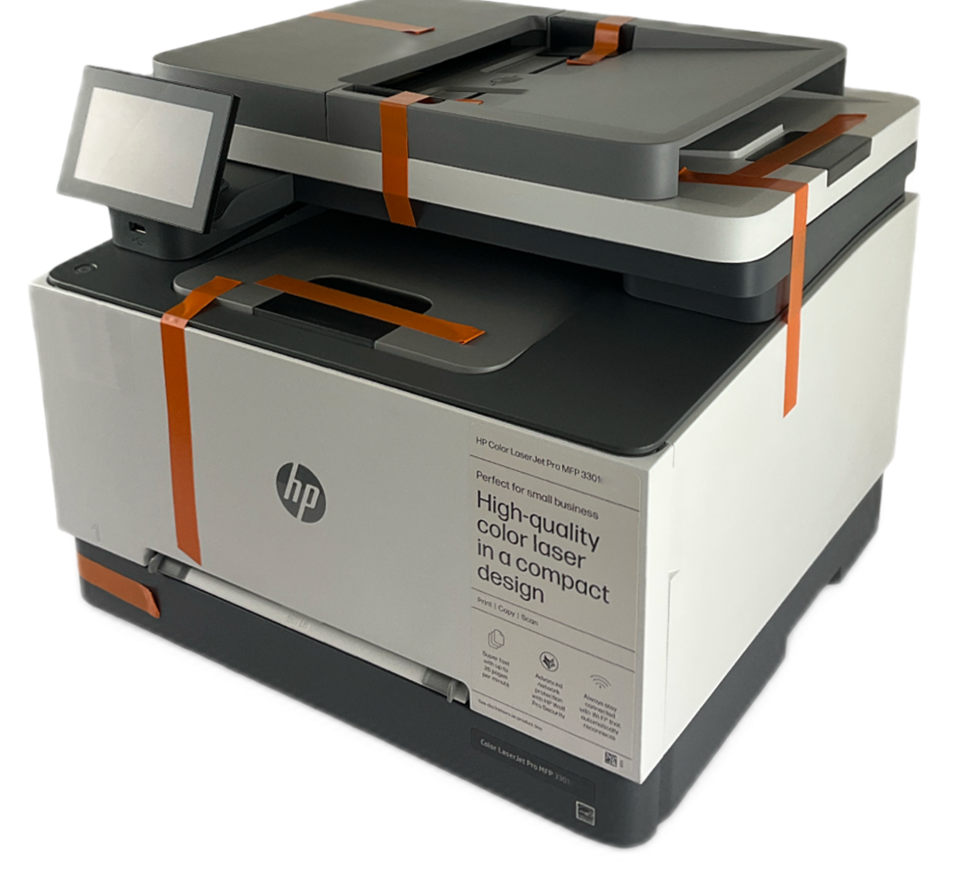 Refurbished, Grade AHP Color LaserJet Pro MFP 3301fdw$299.99HP list price $639.00. You save $339.Free FedEx Ground, 1-5 business daysSee the 3301fdw
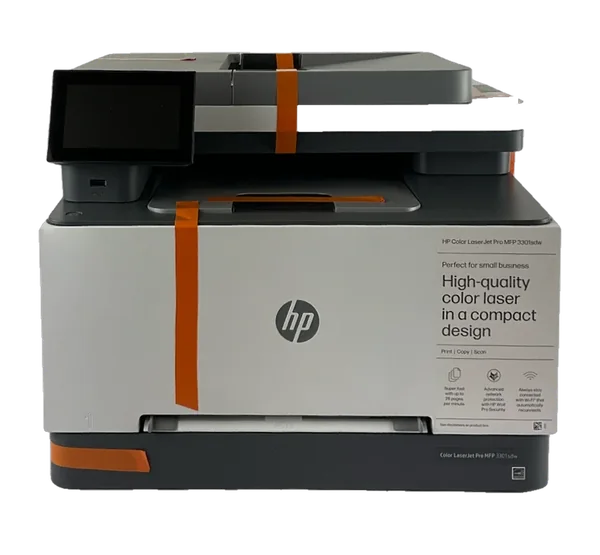 Refurbished, Grade AHP Color LaserJet Pro MFP 3301sdw$299.99HP list price $539.00. You save $239.Free FedEx Ground, 1-5 business daysSee the 3301sdw
More HP 3301 help
Your Wi-Fi network is missing from the HP 3301’s list. →Fix a Wi-Fi Direct connection to the HP 3301. →Fix a wired network connection on the HP 3301. →Print the HP 3301’s status and network reports. →Reset the HP 3301’s network settings and set up Wi-Fi again. →Reset the HP 3301 to factory settings. →All HP 3301 help pages →