HP 3301 help
Print label sheets on an HP 3301.
Load label sheets face up with the top edge going into the printer: one sheet in Tray 1, or up to fifty in Tray 2.
Steps
- Load the labels and move the guides to touch the edges.
- In your program choose Print, pick the printer and open Properties or Preferences.
- On the Paper/Quality tab set the size to your label sheet and the paper type to Label.
- Set the paper source to the tray you loaded, click OK, then Print.
Based on HP’s user guide for the Color LaserJet Pro MFP 3301 series (page 19). Menus can differ slightly between firmware versions. Hardware or warranty questions: support.hp.com.
Need the printer?
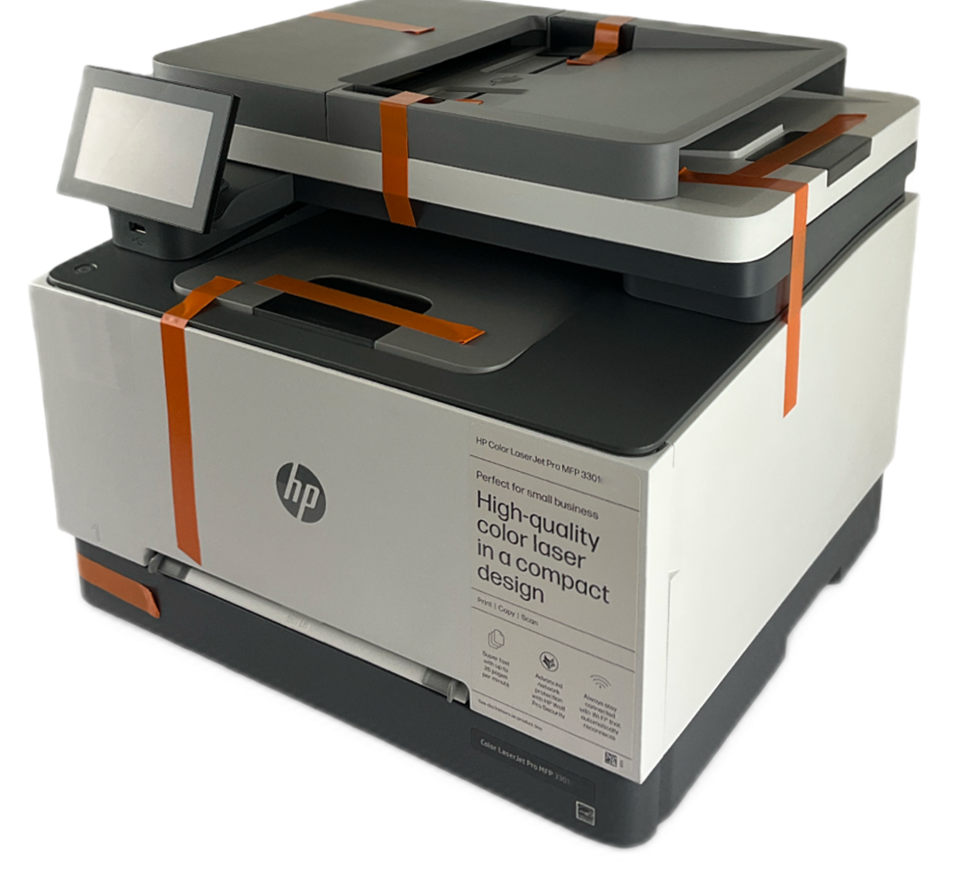 Refurbished, Grade AHP Color LaserJet Pro MFP 3301fdw$299.99HP list price $639.00. You save $339.Free FedEx Ground, 1-5 business daysSee the 3301fdw
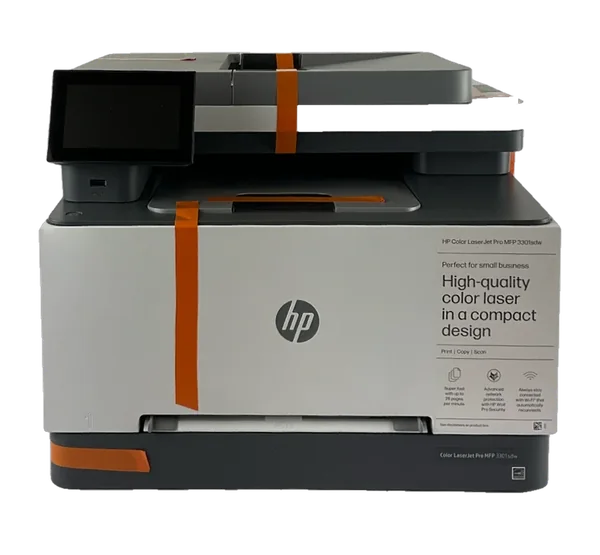 Refurbished, Grade AHP Color LaserJet Pro MFP 3301sdw$299.99HP list price $539.00. You save $239.Free FedEx Ground, 1-5 business daysSee the 3301sdw
More HP 3301 help
Feed one sheet or one envelope through Tray 1. →Letterhead and pre-punched paper on the HP 3301: which side up. →Print envelopes on an HP 3301. →Where to put originals for copying, scanning and faxing. →Change which paper size a tray is set to. →Open the HP 3301’s built-in web page (EWS). →All HP 3301 help pages →