HP 3301 help
Set up Scan to Email on an HP 3301.
The printer sends scans through your email provider’s SMTP server. You set it up once on the printer’s web page.
Steps
- Find the IP address by swiping down the status bar and open it in a browser.
- Open General → Email Servers and click the plus (+).
- Choose SMTP server (one email account) or User-defined email profile (several).
- Enter the display name and email address.
- Enter the SMTP server name and port from your email provider, and turn on Always Use Secure Connection (SSL/TLS).
- If the server needs a login, tick Server Requires Authentication. For Gmail, Outlook or Hotmail with 2-step verification use an app password, not your normal password.
- Optionally require a PIN at the printer, then click Apply.
- Select the new profile and click Test. A test email arrives if it works.
Good to know
- Most providers cap attachments somewhere between 10 MB and 50 MB on free accounts.
- Leave Validate Certificates off unless a certificate was imported to the printer.
Based on HP’s user guide for the Color LaserJet Pro MFP 3301 series (page 32). Menus can differ slightly between firmware versions. Hardware or warranty questions: support.hp.com.
Need the printer?
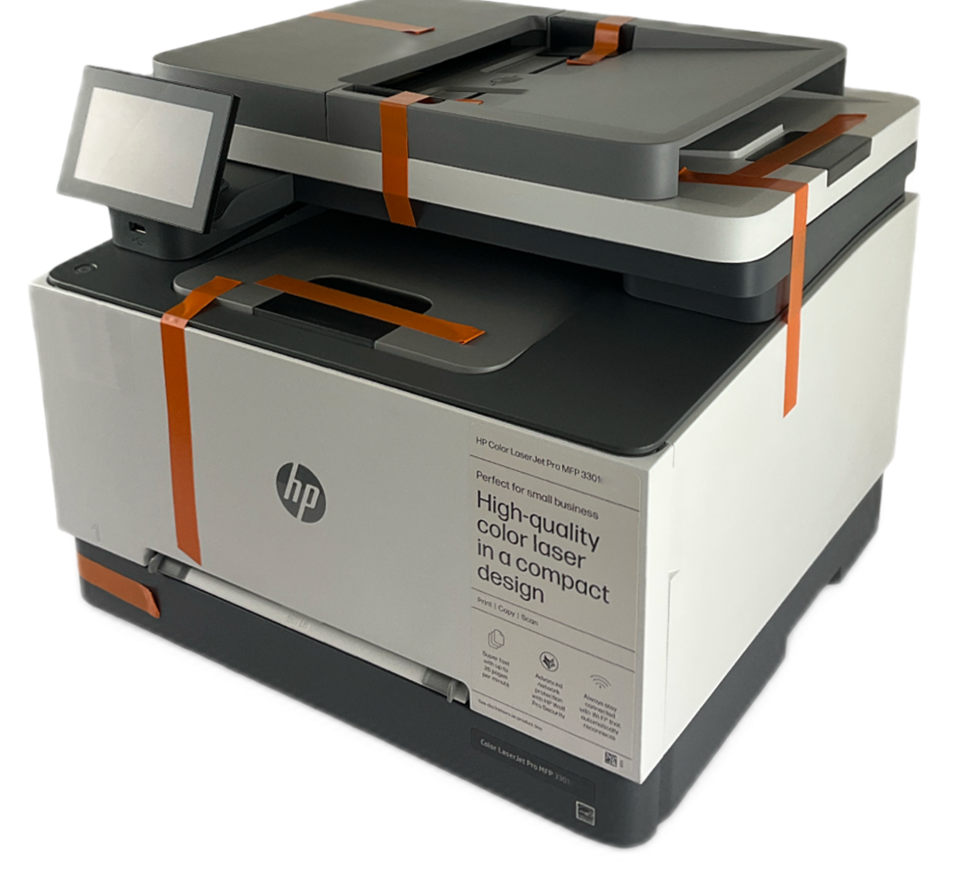 Refurbished, Grade AHP Color LaserJet Pro MFP 3301fdw$299.99HP list price $639.00. You save $339.Free FedEx Ground, 1-5 business daysSee the 3301fdw
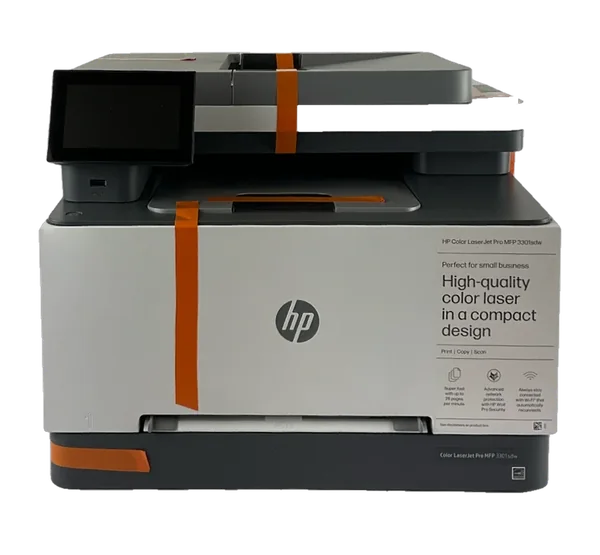 Refurbished, Grade AHP Color LaserJet Pro MFP 3301sdw$299.99HP list price $539.00. You save $239.Free FedEx Ground, 1-5 business daysSee the 3301sdw