HP OfficeJet Pro 9730 help
Clear a paper jam in the HP 9730’s document feeder.
Check under the feeder cover, under the feeder tray and under the scanner lid.
Steps
- Lift the feeder cover and pull any paper out of the rollers. Close the cover until it clicks.
- Lift the feeder tray, remove paper underneath and lower it.
- Lift the scanner lid and remove any paper there.
Good to know
- Feeder keeps jamming? Clean its rollers.
Based on HP’s OfficeJet Pro 9730e user guide (HP+ features left out) (page 47). Menus can differ slightly between firmware versions. Hardware or warranty questions: support.hp.com.
Need the printer?
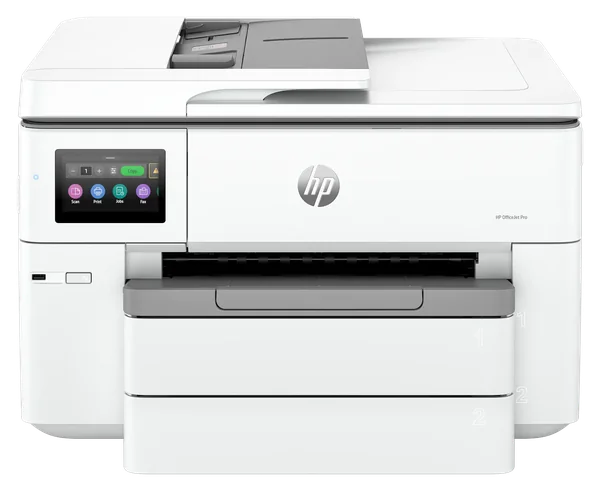 Brand new, factory sealedHP OfficeJet Pro 9730$279.99HP list price $439.99. You save $160.Free FedEx expressSee the 9730
More HP OfficeJet Pro 9730 help
Clear paper stuck under the print carriage. →Clear a jam in one of the HP 9730’s trays. →Clear a jam near the output tray and two-sided unit. →Clear a jam through the HP 9730’s rear access door. →Stop the HP 9730 jamming. →Fix paper feeding problems on the HP 9730. →All HP OfficeJet Pro 9730 help pages →